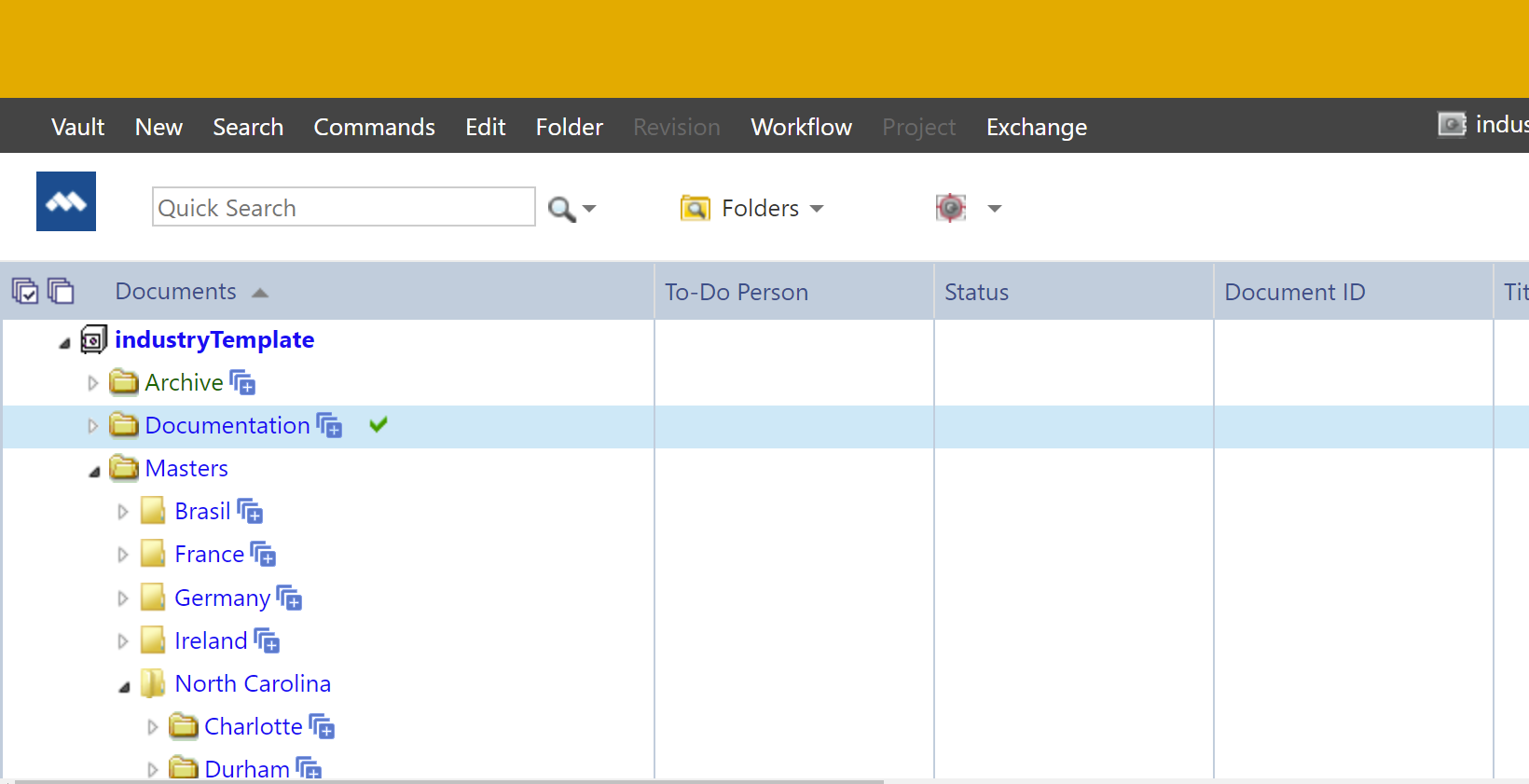
How to add custom "Expand All" functionality to Power WEB Interface.
I am implementing technical document management solutions for 26+ years, highly skilled in development tools (dotnet, javascript) as well as solutions like AutoCAD, Revit, Microstation, Solidworks, Sharepoint, Opentext, ProjectWise, SAP, MAximo and others.
Even small customization can solve challenges and increase the value of the Meridian solution. Here is a relevant customizations that can be quickly adopted to bring performance and usability to your Meridian.
The challenge
To quickly open a folder structure or a navigation view to the document level.
The solution
See the video:
How to install the solution
All files are available on Github.
Step by step procedure:
- Locate the file \inetpub\amm\scr\ main.js
- Create a backup of the file in case you need to restore it.
- Open the file in a text editor, like notepad or notepad++
Add the lines below after the last line
function dynamicallyLoadScript(url) {
 var script = document.createElement("script");  // create a script DOM node
 script.src = url;  // set its src to the provided URL

 document.head.appendChild(script);  // add it to the end of the head section of the page (could change 'head' to 'body' to add it to the end of the body section instead)
}
//do not load for IE
if (!window.document.documentMode) {
dynamicallyLoadScript("/Meridian/Src/ExpandAll.js");
}
Locate the file \inetpub\amm\scr\ amm.css
Create a backup of the file in case you need to restore it.
- Open the file in a text editor, like notepad or notepad++
Add the lines below :
.expand img {
 margin-left: 2px!important;
 opacity: 0.2;
}
.expand:hover img {
opacity: 1;
}
Copy the file ExpandAll.js to the folder \inetpub\amm\scr
- Copy the file expandAll.png to the folder \inetpub\amm\img
Installation is done, no IIS restart is required, just refresh the browser.
Technical concerns
This customization can cause Meridian Power web to stop responding for a long period if the user selects a folder with a long hierarchy of items.
This customization can cause server slowness if many users open a long hierarchy of subfolders at the same time.
Understand and improve the customization
This customization is based on manipulating the HTML page to add the new link and to simulate the user clicking all subfolders.
Before everything, we need to add to the file main.js some lines to load our customized javascript code, as in step 4 of the installation.
When the custom ExpandAll.js is loaded, the following code will wait for the HTML page to be loaded and then call the function applyInitialExpandAll(); to find folders and add the link to expand:
//Do the initial formatting
window.addEventListener("load", function() {
    applyInitialExpandAll();
    //event for every new TR in the html
    $('body').on('DOMNodeInserted', 'tr', DOMCallback);
});
The line $('body').on('DOMNodeInserted', 'tr', DOMCallback); will make sure that the function DOMCallback will be triggered for every time a new object <TR> is created. This will allow us to manipulate the system when a new folder is created
The function addExpandLink is the one adding the visual expand next to the folder name. you can modify the visual image by changing this line:
href.innerHTML = "<img src='.\\img\\expandAll.png' >";
You may also notice that, in the addExpandLink function, when the user click the link, the system will simulate as if the user is clicking in the folder itself and will also add an attribute to allow us to know that all subfolders must be expanded:
var createClickHandler =
            function(obj)
            {
                return function() {
                    if(event.isTrusted)
                    {
                        obj.childNodes[1].click();
                        obj.childNodes[4].setAttribute('expand', true);
                    }
                 };
            };

href.onclick = createClickHandler(obj);
Now, when a folder is expanded, new subfolders will be created and we will be watching for new items being created in the event DOMCallback
function DOMCallback(e)
{
    if (e.currentTarget.className == "folder" )
    {
            expandFolders(e.currentTarget);
    }
}
If the new HTML object is identified as a folder (or subfolder in this case) we will call the function expandFolders and this function will make sure to add for the new subfolder, the link to expand.
        if (level >1)
        {
            addExpandLink(child);
        }
This function will also expand the subfolder automatically if they have used the "Expand All" link instead of the regular expand link. The subfolder is expanded by simulating the user click and the validation is done based on the attribute ("expand") == 'true')
if (parentChild.childElementCount > 4 && parentChild.childNodes[4].getAttribute("expand") == 'true')
                {
                    child.childNodes[4].setAttribute('expand', true);
                    child.childNodes[1].click();
                }
You can use chrome F12 to debug, as described here: Chrome - Debug Javascript
F12 is also useful to investigate the Power WEB HTML code, so you can navigate thru it and understand how to manipulate the interface to ad customization, as in this video: Chrome - Inspect HTML
Supported scenarios
This customization is not supported by the default SLA agreement. But it has been tested under the following conditions:
Browser
| Browser | Status |
| Firefox, Chrome, Edge |  |
| Internet Explorer |  |
Meridian Version
| Meridian Version | Status |
| 2021 R2 | |
| 2021 R3 | |
It may works in other versions, but has not been tested yet. Let us know if you have tried other versions.


